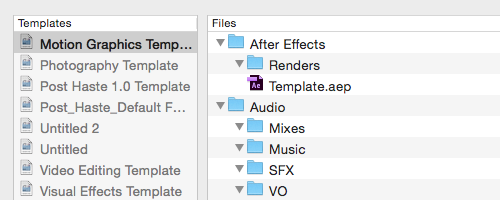
Post Haste for Mac: Project Structure
A practical breakdown of how I use Post Haste to standardise project setups, reduce preventable mistakes, and keep creative work scalable across teams.
If you work in video production, motion graphics, photography, or any creative field where projects multiply quickly, you know how chaotic things can get without a system. That’s where Post Haste, a free app by Digital Rebellion, comes in. It’s a simple but powerful tool designed to standardize your project structure and keep your workflow consistent.
What is Post Haste?
Post Haste is a template-based project organizer. Instead of starting every new job with a blank folder, you can set up custom folder and file structures that are generated instantly with the click of a button.
This ensures that all your projects—whether they’re for video editing, VFX, podcasts, or photography—follow the same naming conventions and file hierarchy. That consistency saves time, reduces mistakes, and makes collaboration much easier.
How to Use Post Haste
- Download & Install
Grab Post Haste from Digital Rebellion’s site and install it on your Mac. It’s lightweight and doesn’t require complex setup. - Set Up a Template
Inside the app, create a template that reflects your ideal project structure. For example:
Project_Name/
├── Assets/
│   ├── Audio/
│   ├── Graphics/
│   └── Stills/
├── Footage/
├── Project_Files/
├── Exports/
└── Docs/
- Customize Metadata
You can add tokens like Project Name, Client Name, Date, or Editor that automatically generate folder names and filenames when you start a new project. - Create a New Project
Each time you start something new, simply open Post Haste, choose your template, and fill in the project details. The app instantly builds the folder tree on your chosen drive.
Why It’s Useful
- Consistency: Every project looks the same, so you (or your collaborators) never waste time hunting for files.
- Speed: Setting up a project takes seconds instead of 15–20 minutes of manual folder creation.
- Scalability: The more projects you handle, the more value Post Haste adds.
- Professionalism: Organized folders show clients and collaborators that you run a tight ship.
Example: How I Use Post Haste
In my own workflow as a post-production specialist and videographer, I use Post Haste every time I start a new client project. My template is tailored for video editing in Premiere Pro and After Effects, with separate folders for raw footage, audio, project files, assets, exports, and delivery.
For example, when I’m editing a client interview, I just enter the client’s name, date, and project title in Post Haste. The app automatically creates a full directory like this:
ClientName_ProjectTitle_2025/
├── Footage/
├── Audio/
├── Project_Files/
│   ├── Premiere/
│   └── AfterEffects/
├── Assets/
├── Exports/
└── Delivery/
This means when I import assets into Premiere, everything is already where it should be. I never have to wonder, “Where did I save that WAV file?” or “Which export is the final one?”—the structure keeps it crystal clear.
Final Thoughts
Post Haste is one of those small utilities that quietly transforms your daily workflow. It doesn’t edit videos, mix sound, or render graphics, but it makes sure that when you do, you’re working in an organized environment.
For creative professionals juggling multiple clients or projects, it’s a no-brainer—free, fast, and endlessly customizable.
👉 If you haven’t tried it yet, download it here and give your projects a consistent foundation.